How to use SubTrack
Learn how to use SubTrack to manage and track your subscriptions.
Getting started
SubTrack helps you keep track of your subscriptions, renewal dates, prices, and spending in one place.
Create an account
Create your account to start managing your subscriptions.
Add your subscriptions
Add the services you currently subscribe to and enter their details.
Track upcoming payments
See your upcoming renewal dates and keep track of your spending.
Manage your subscriptions
Edit subscription details or remove subscriptions you no longer use.
Managing your subscriptions
Can I have subscriptions in different currencies?
Yes. SubTrack allows you to store subscriptions using the supported currencies. Spending totals are displayed separately by currency (EUR, USD, and GBP).
Can I edit a subscription?
Yes. Open the details page and click the Edit button.
Can I delete a subscription?
Yes. Select Delete, review the subscription information, and confirm the deletion.
What happens when I delete a subscription?
The subscription is permanently removed from your account.
How is the next payment date calculated?
SubTrack calculates it using the subscription start date, duration, and billing cycle.
Can I add notes to a subscription?
Yes. You can add and later edit notes associated with a subscription.
Understanding your subscription
What is "billing cycle"?
The interval between payments (daily, weekly, monthly, or yearly).
What is "duration"?
The number of days, weeks, months, or years before the subscription expires.
What is "next payment"?
The date on which the next payment is due.
What is "auto-renew"?
Indicates whether the subscription renews automatically.
Examples
Viewing your subscriptions
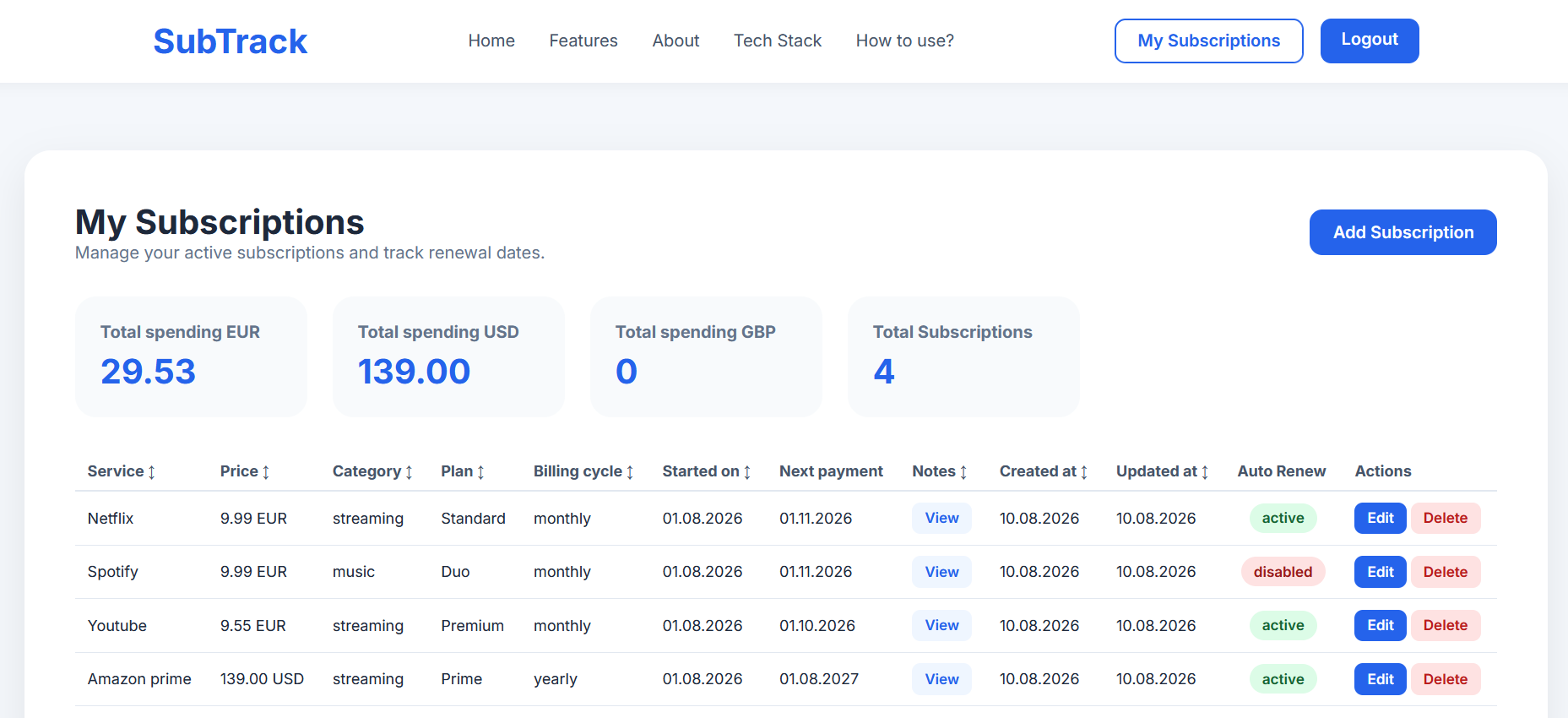
The My Subscriptions page shows all of your subscriptions, including their prices, billing cycles, renewal dates, and auto-renew status.
You can also click a sortable column heading to sort your subscriptions in ascending or descending order.
Adding a subscription
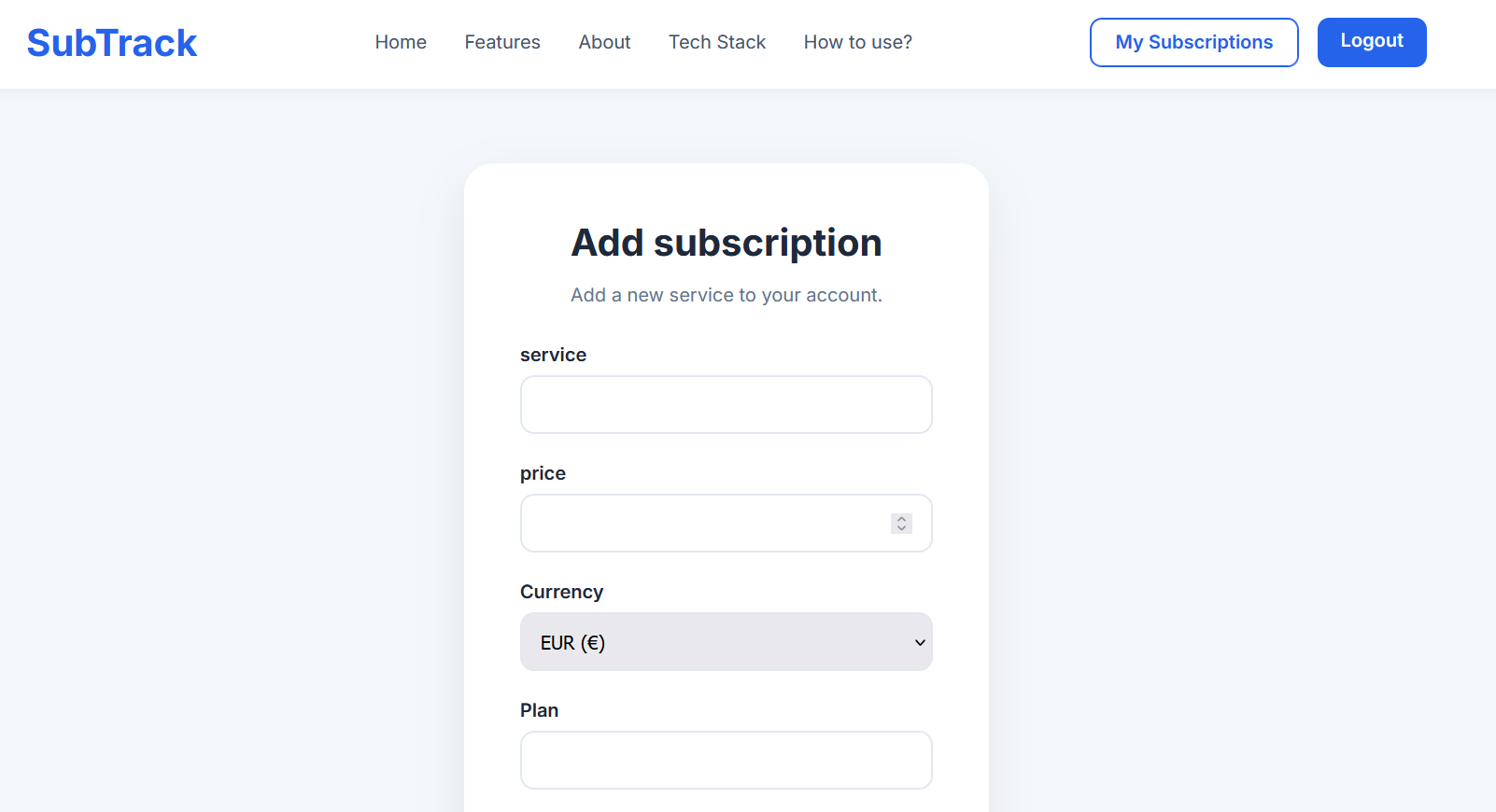
Add the details of your subscription, including the service, price, currency, billing cycle, start date, duration, and optional notes.
Editing a subscription
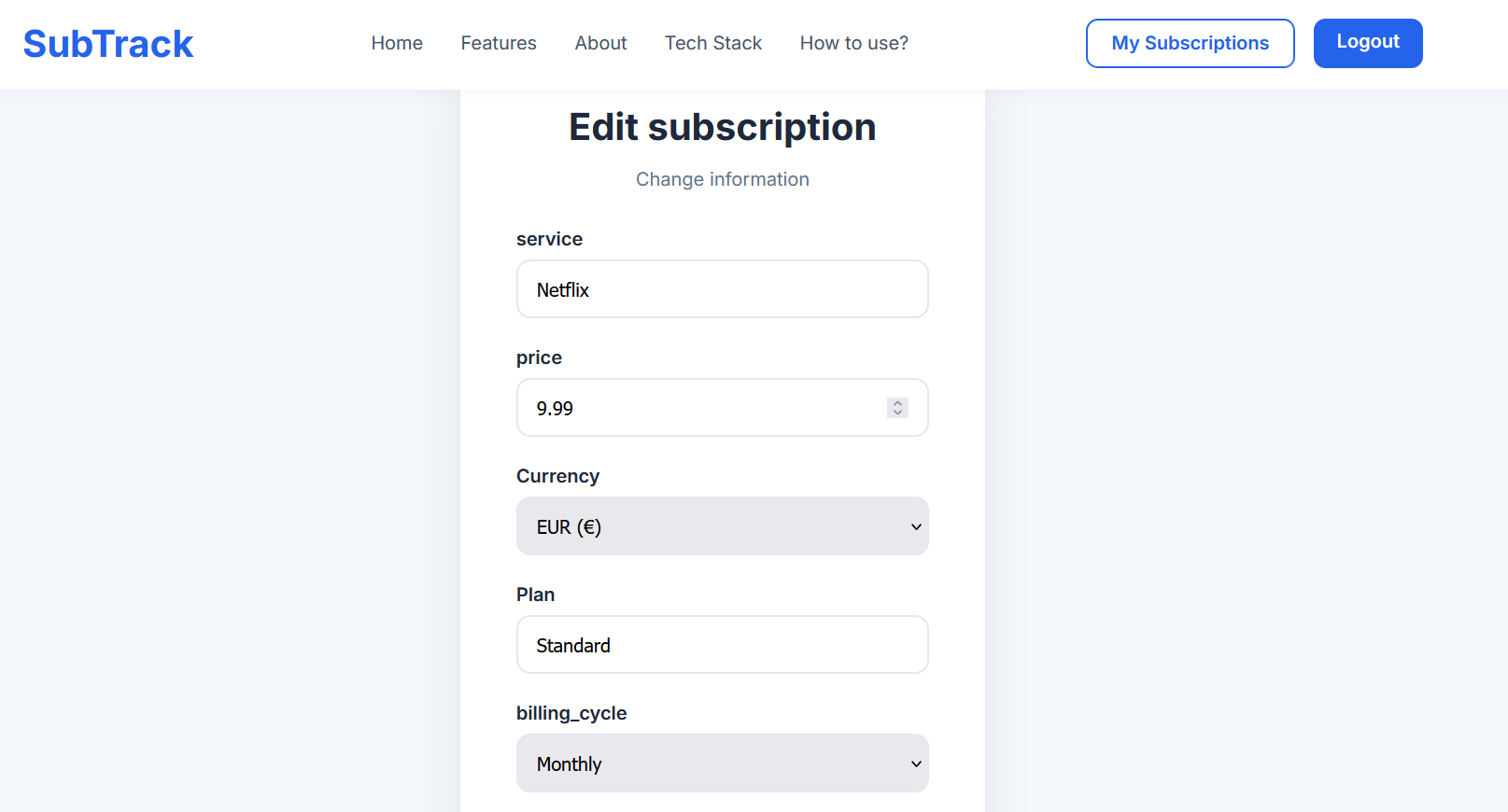
Open a subscription and select Edit to change its details. The next payment date is recalculated using the updated subscription information.
Deleting a subscription
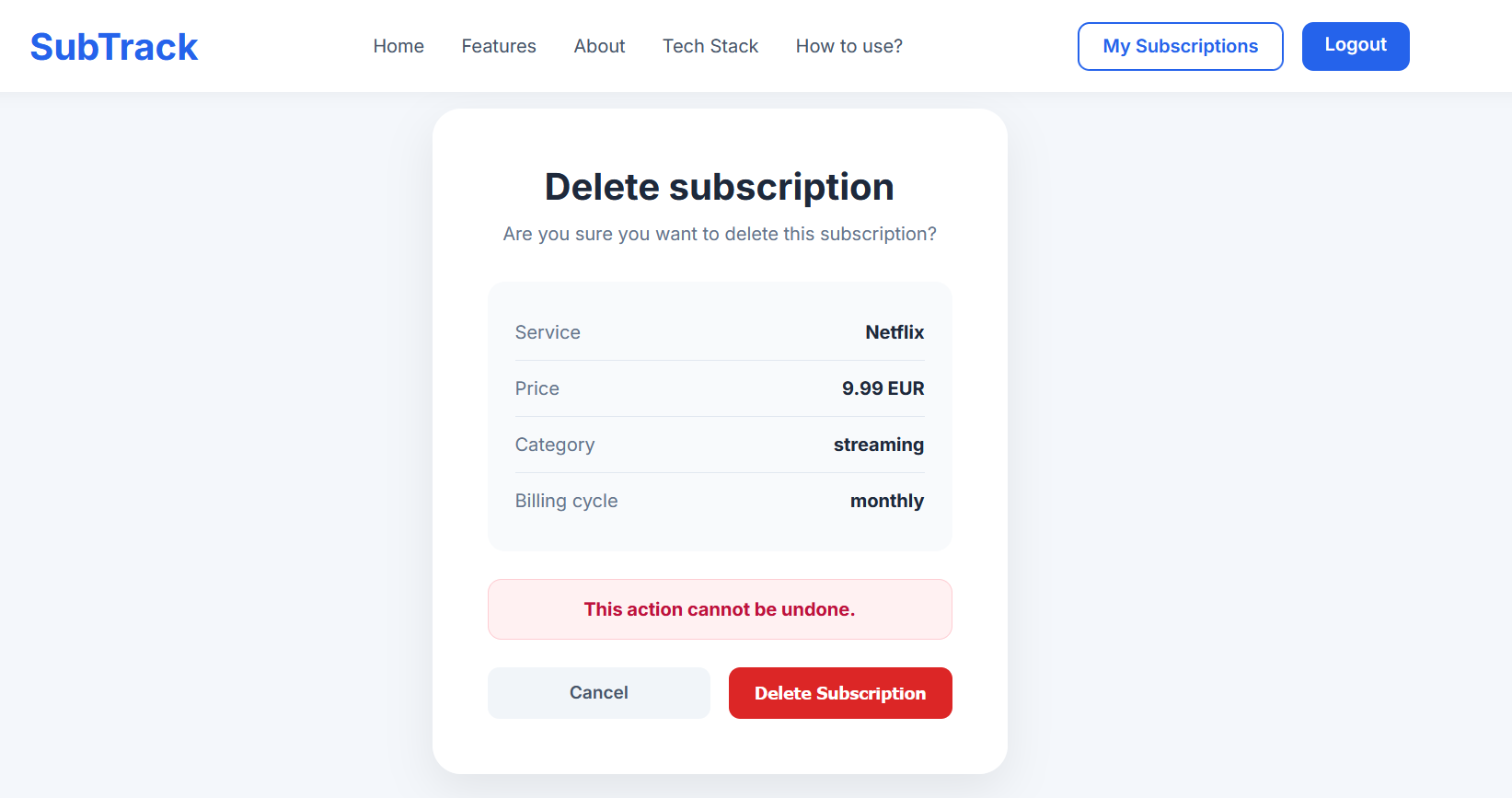
Before deleting a subscription, SubTrack displays its details and asks you to confirm the deletion. Deleted subscriptions cannot be recovered.